
Auto model router
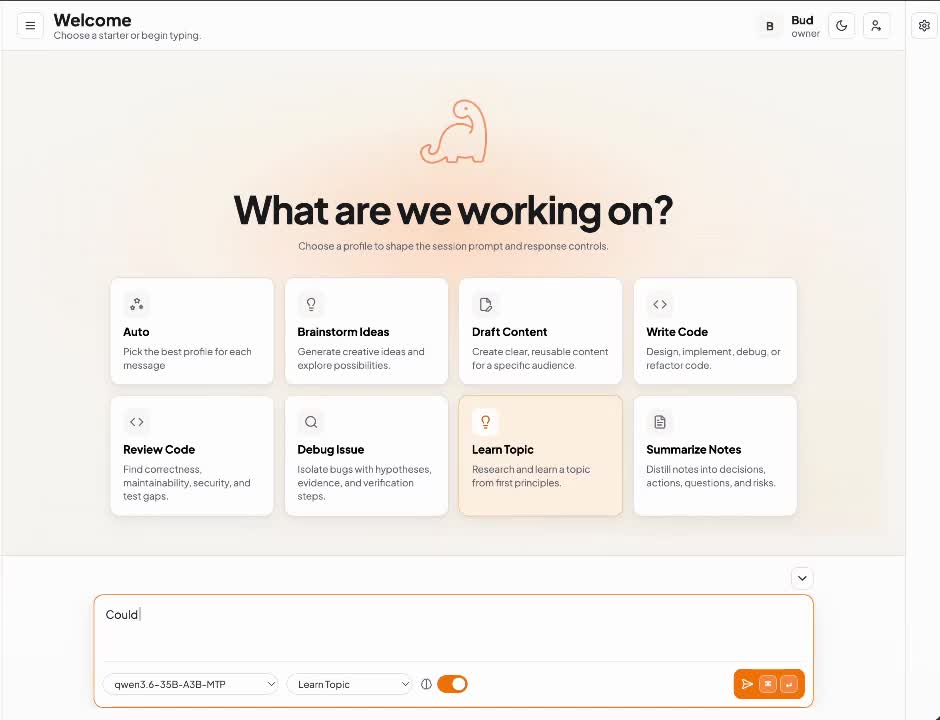
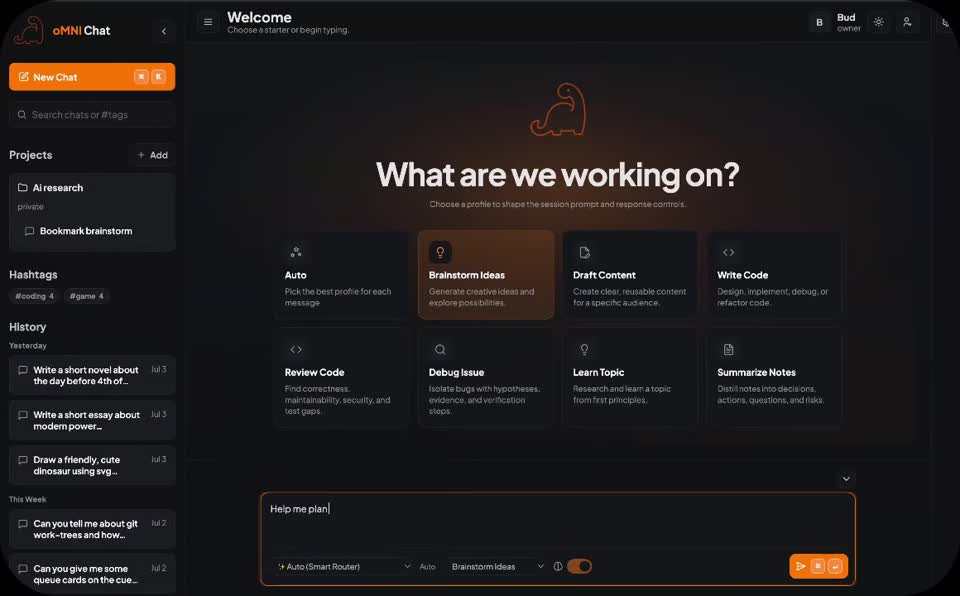
Picks the smallest model that can handle each question — preferring ones already loaded — so you don’t have to think about it.
One workspace for open models on your hardware — including one that runs right inside the Mac app — and frontier models when you need them. Full history, accounts, and control stay on your machine.
curl -fsSL https://geekaholic.gitlab.io/omni-chat/install-macos.sh | bashFree and open source under Apache 2.0.
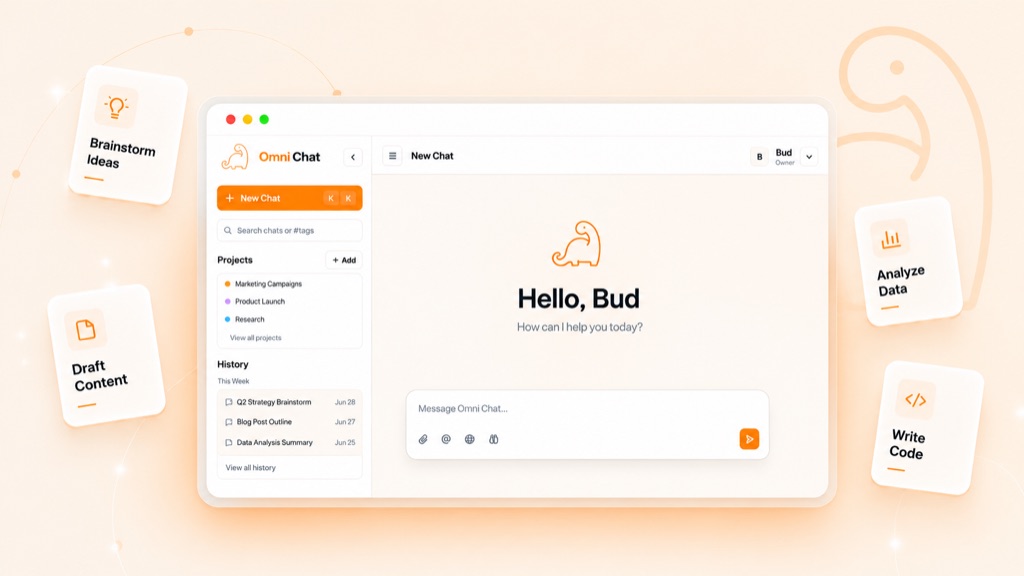
Recent releases removed most of the setup — and taught the app some new tricks.
The desktop app finds OpenAI-compatible servers — Ollama, LM Studio, llama.cpp, vLLM — on your computer and home network, and their models appear in the picker. Zero config.
Download Qwen 3.5 once and chat with no server at all. It runs on Apple Silicon through MLX — the 4B on Macs with 16 GB, the 2B on 8 GB.
Already pay for ChatGPT? Sign in once and use OpenAI’s Codex models for chat and image generation through your subscription — no API key to create or paste.
Ask for something big and the assistant drafts small tasks with checks. Approve once, then watch each task run and pass.
No config files, no API keys required. Most people are chatting within a few minutes.
Paste one line into Terminal on a Mac or Linux desktop. It downloads, verifies, and opens the app. Get the command
Models served on your computer or home network appear in the picker automatically. Or download the on-device model on a Mac, or sign in with ChatGPT. Mix them any time.
History, projects, accounts, and memory are stored in a database on your machine — not in someone else’s cloud.
AI Servers
Discover and manage servers
10 models ready in the picker
Open models are good enough for most daily work. Daily work stays private and free on your hardware — you only pay, and send data, when the task needs frontier capability.
Your chats leave the building
Sensitive drafts and family questions sit on someone else’s servers.
Full history lives in a local SQLite database. Local models keep everything on your network. Off-the-record mode skips saving when you want it.
Metered thinking
Rate limits and token bills punish everyday use.
Start with Ollama or LM Studio. Add frontier providers or extra machines later — same dropdown.
Local UIs stop short
Many Ollama frontends are single-user chat shells.
One picker plus a smart router. Local and frontier models side by side — pick yourself or let routing choose.
History is stored on your machine whichever you pick. Or choose Auto and oMNI picks the smallest model that can handle each question.
Connect hosted providers (OpenAI, Claude, Grok, etc.) in the same dropdown whenever you want. Your chats stay in your database either way.
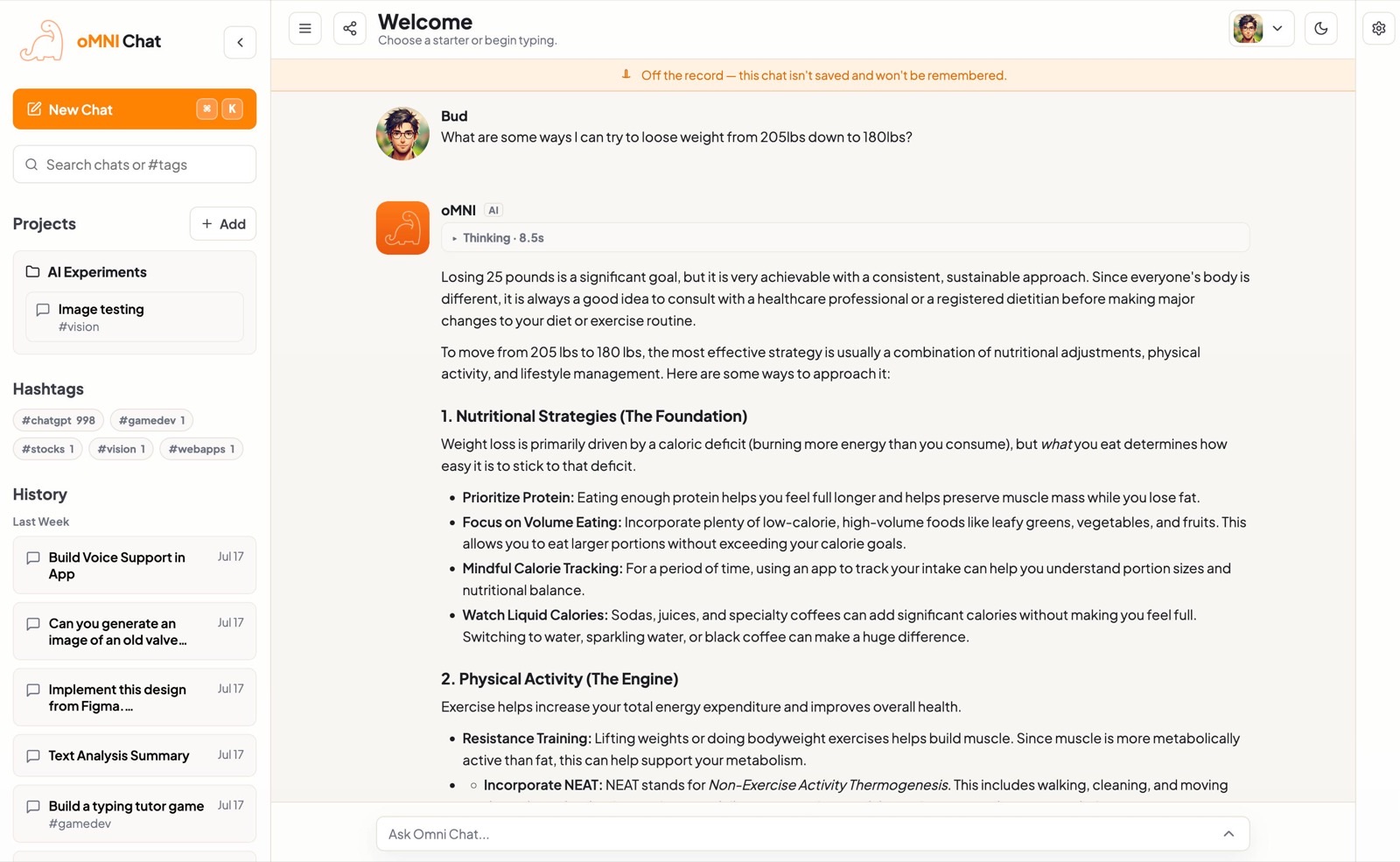
Screenshots from the actual app, with real model output — the parts that set oMNI Chat apart.
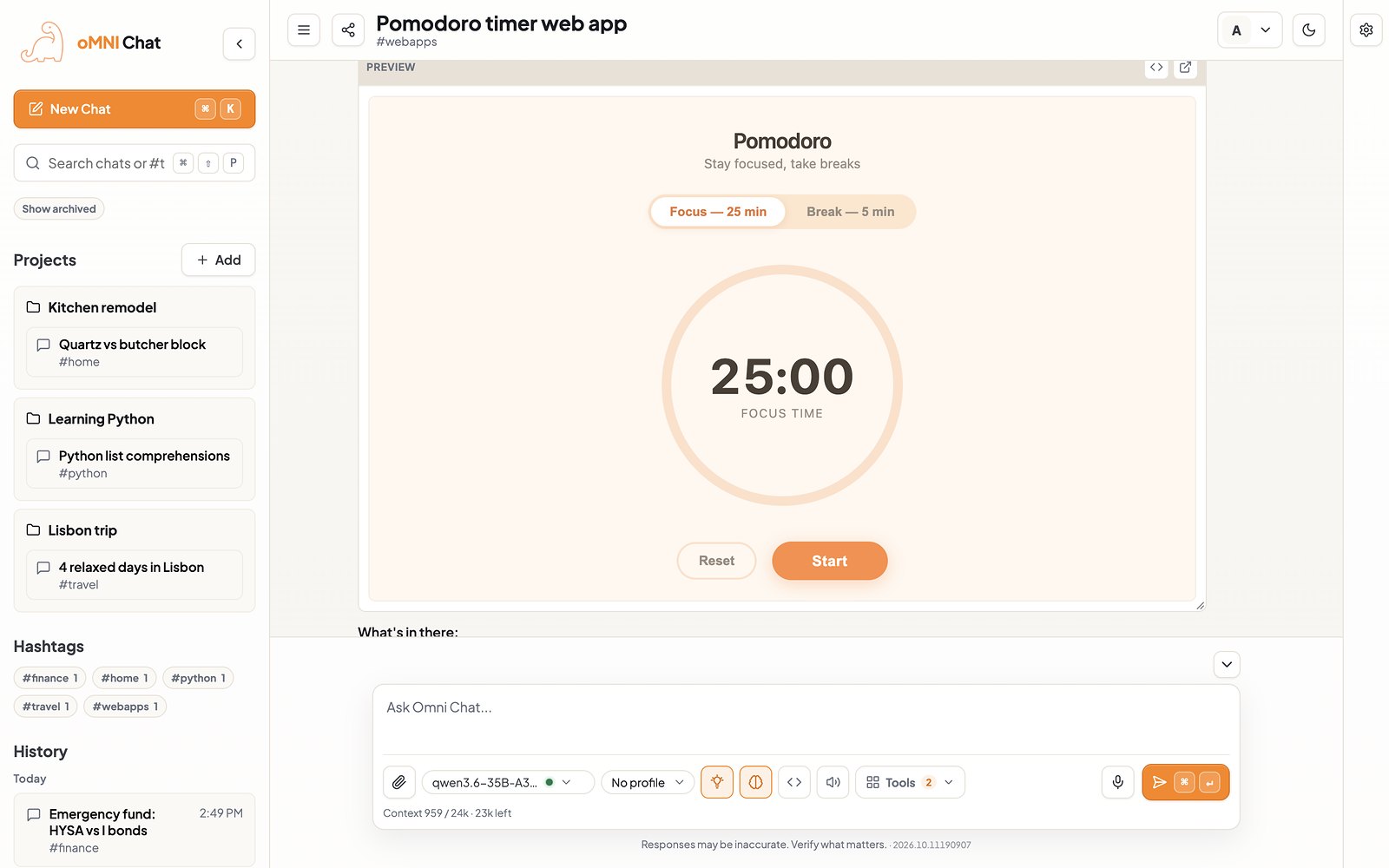
Organize history with projects and hashtags. Ask for a small app, chart, or SVG and open a sandboxed live preview right next to the conversation.

Turn on the on-device model in Settings → Models and the app downloads Qwen 3.5, then runs it on your Mac’s GPU with MLX. No server to install, and once it’s downloaded it works offline — with thinking, web search, and tools.
Apple Silicon on macOS 26 or later. Qwen 3.5 4B (about 3 GB) on Macs with 16 GB of memory; the 2B on 8 GB Macs.

Any OpenAI-compatible server on your computer or home network — Ollama, LM Studio, llama.cpp, vLLM, and more — is detected automatically, and its models simply appear in the picker. No URLs to type, no files to edit. Scan now in Settings → AI Servers digs deeper, including servers that need a key, and every connection can be tested before you save.
Network discovery is on in the Mac and Linux apps; Docker and server installs look on their own machine by default. Admins get the same Settings in the web version.

In Settings → Integrations, Sign in with ChatGPT connects OpenAI’s Codex models through your subscription — for chat and for image generation. No API key, no per-token bill. The owner signs in once and everyone on the instance can use it, with history still stored on your machine.
Needs a ChatGPT plan that includes Codex. Prompts you send to these models go to OpenAI, like any hosted model.

For anything with several parts, the assistant writes a plan: a goal and small tasks, each with checks it can run. Edit or approve it once. A job card shows every task’s status, files, and check results live, and a failed task pauses for a fix instead of plowing on.
Runs on a coding agent such as Pi or Hola, in a workspace folder you can open and watch.

When a question needs real math or data, the model writes Python or JavaScript and runs it in a sandbox inside your browser — nothing executes on the server. You see the code and its output, and the answer is built on the real result.

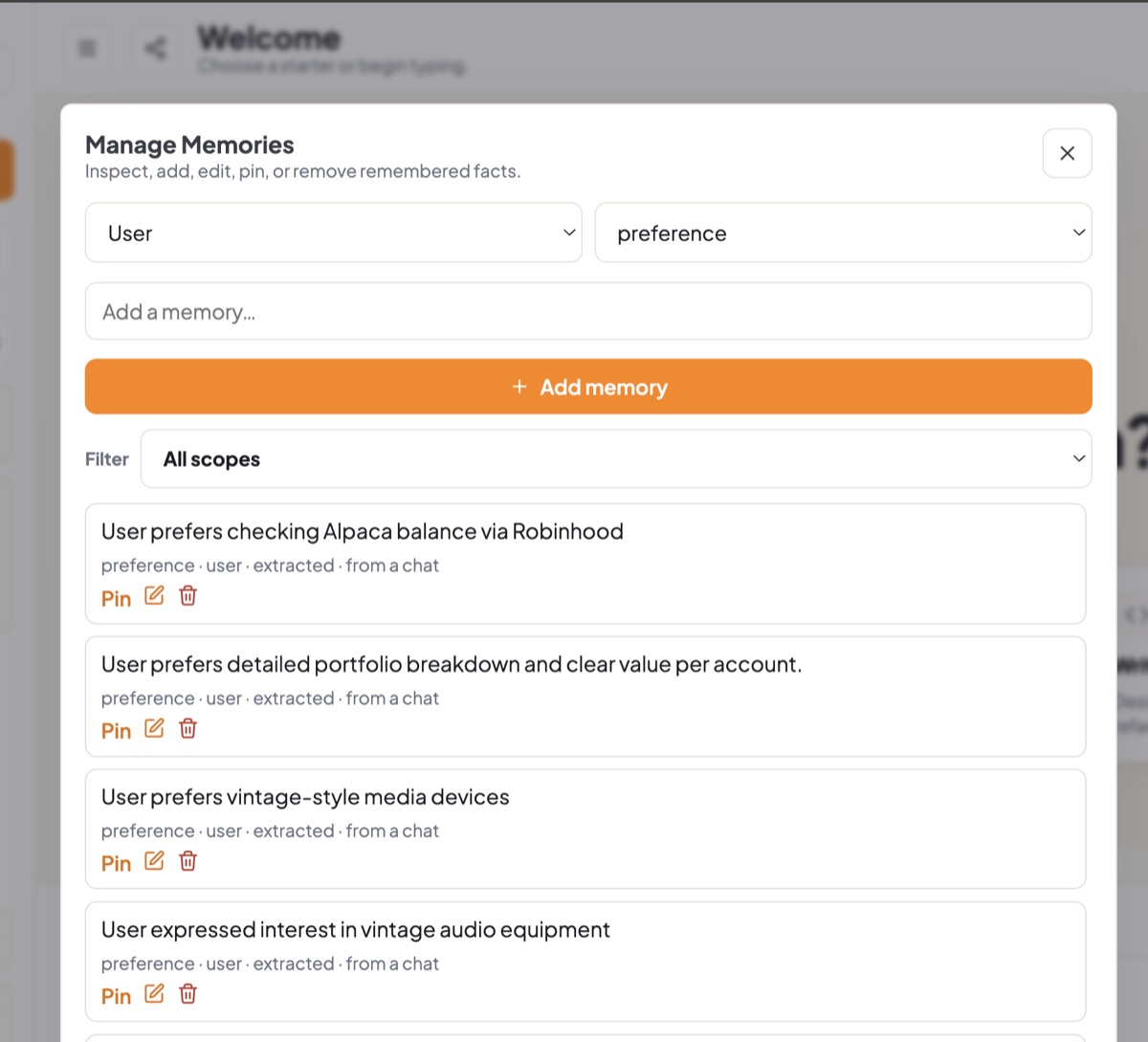
When a chat teaches the assistant something about you, a Remembered card appears with Undo. Every memory is visible, editable, and pin-able — you decide what it keeps.
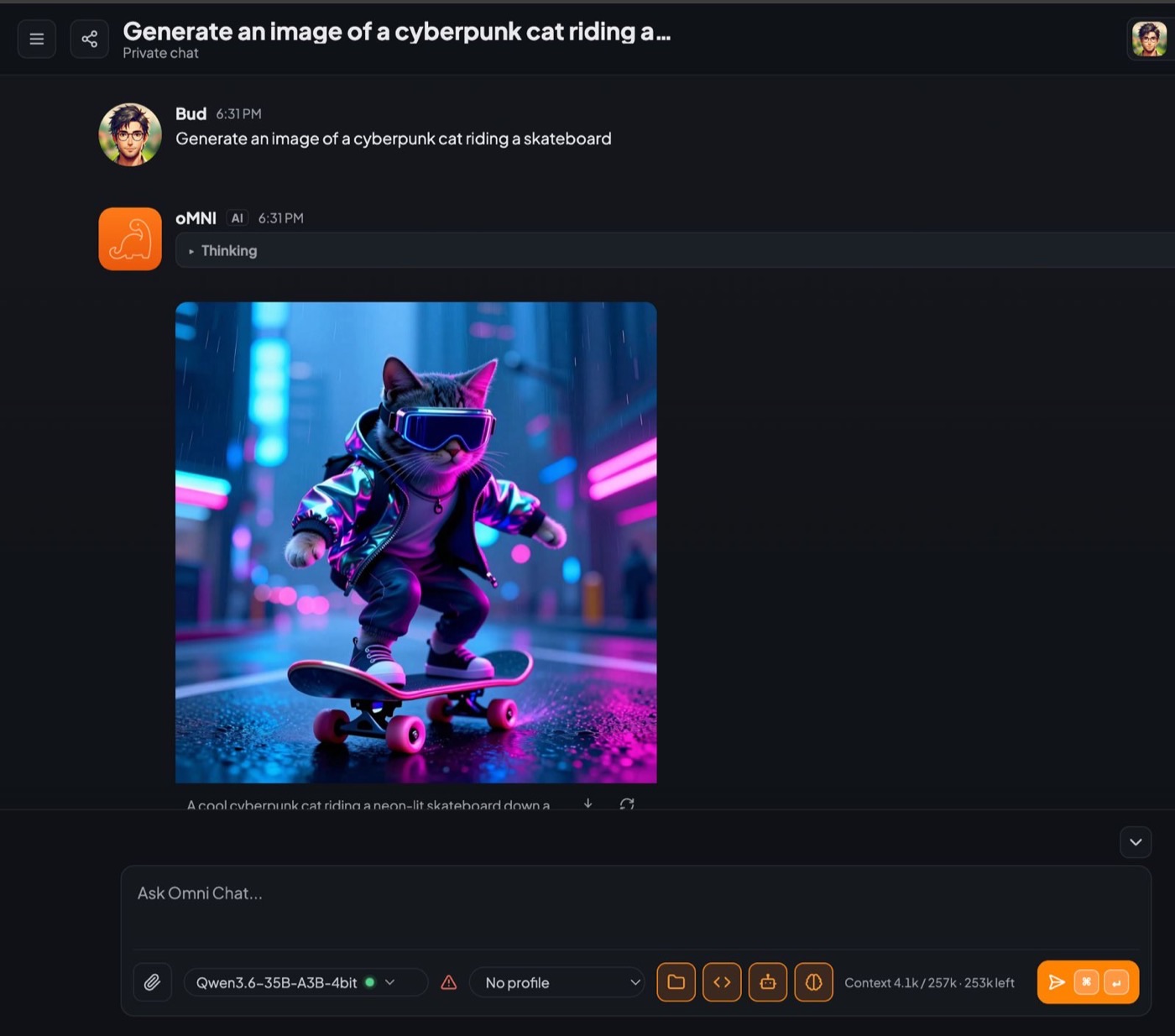
Generate images, call tools, and share one instance with family or teammates — each with their own account and history on the models you configured.
Image generation runs on a separate local image model — a capable GPU helps.
Run oMNI Chat on one computer at home and give each person an account. They open it in a browser on their laptop, tablet, or phone — nothing to install on their side, and no subscription per person.
Every person’s chats, projects, and memories are theirs alone. Other accounts can’t see them — or even tell they exist.
Add family members in Settings → Members, switch an account off, and choose who else can manage the AI servers.
The models you connect — and a single ChatGPT sign-in or API key — work for everyone. No per-person plans or keys to juggle.
Laptops, tablets, and phones just use the browser — and on iPhone, Add to Home Screen makes it feel like an app.
Sharing with other devices uses the Docker or home-server install. On the Mac and Linux apps, family members can still take turns on that computer, each signing in to their own account.
Native iPhone and iPad apps are in testing now. On iPad, the on-device model runs right on the tablet — no server needed.
Can’t wait? If oMNI Chat runs on Docker or a home server your phone can reach, open it in Safari, tap Share, then Add to Home Screen. It opens full screen with its own icon, just like an app.
Picks the smallest model that can handle each question — preferring ones already loaded — so you don’t have to think about it.
Equations display properly, in light or dark mode.

Plug in Model Context Protocol servers for extra tools. Each person can switch servers on or off, and tools marked sensitive ask before every call.
In the desktop app, start a private SearXNG from Settings → Local services; on Docker it’s one overlay. Search is a per-chat switch.
Point a model at a web page or YouTube video and it pulls in the readable text or transcript.
Need a chat that isn’t saved or remembered? Start it off the record and it never lands in your history.
Ollama, LM Studio, llama.cpp, vLLM, LiteLLM, and anything OpenAI-compatible — found automatically on your network — plus hosted providers.
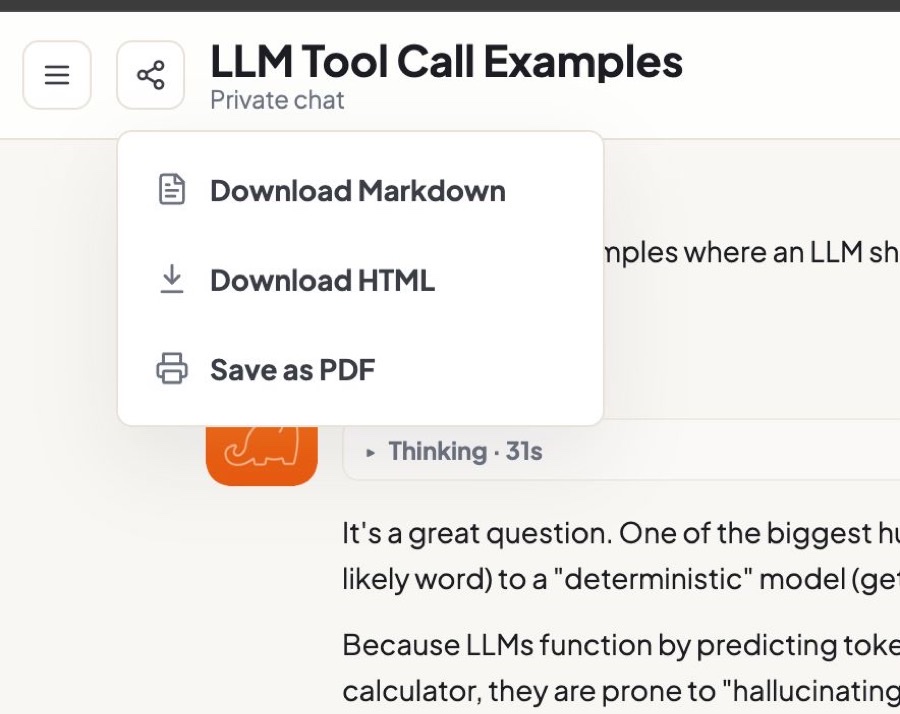
Download Markdown, HTML, or PDF when you need work to leave the app.
Drop in images, PDFs, and text documents. Images go to vision models; document text is read in as context.
Dictate with speech-to-text and hear replies read aloud, with optional local voice models.
A model’s reasoning folds away behind a live timer, and a guard stops models that get stuck in a loop.
Native apps for Apple Silicon Macs and x86_64 or ARM64 Linux. Docker Compose for servers; iPhone, iPad, and Windows are next.
…and more. Read the full Manual
Install the Mac or Linux desktop app in one command, or run the Docker stack on a server for the whole household.
curl -fsSL https://geekaholic.gitlab.io/omni-chat/install-macos.sh | bash
Downloads the latest DMG, copies Omni Chat.app into /Applications,
and runs xattr -dr com.apple.quarantine so Gatekeeper will launch it.
Prefer to install by hand? Open the DMG, drag Omni Chat to Applications, then run
xattr -dr com.apple.quarantine "/Applications/Omni Chat.app"
— or use System Settings → Privacy & Security → Open Anyway.
The one-liner already does this for you.
curl -fsSL https://geekaholic.gitlab.io/omni-chat/install-linux.sh | bash
Downloads the matching AppImage from the GitLab package registry, verifies its SHA-256,
adds a desktop-menu entry, and installs the omni-chat command for your user.
Prefer a portable app? Choose the architecture above, make the downloaded AppImage executable, and run it. Direct download links are refreshed from the release manifest; browse all Linux versions in the GitLab package registry.
# 1. Install Docker Desktop and Ollama first
# 2. Start a small model in Ollama, e.g.:
# ollama pull gemma4:e4b

# Then run oMNI Chat:
git clone https://gitlab.com/geekaholic/omni-chat.git
cd omni-chat
cp .env.example .env

# Tell it to talk to your local Ollama
# (on Docker Desktop this hostname works)
echo 'CHAT_ENDPOINT_URL=http://host.docker.internal:11434' >> .env

docker compose up --pull always -d
Barebones chat only. Pulls the image and starts the web app on port 8080.
# After the Starter steps above…
# One-time secret for SearXNG
SECRET=$(openssl rand -hex 32)
echo "SEARXNG_SECRET=$SECRET" >> .env

docker compose \
  -f compose.yaml \
  -f compose.search.yaml \
  up --pull always -d
Adds a local SearXNG container so tool-using models can fetch fresh web results.
# After clone + cp .env.example .env (and Ollama / endpoint setup)…

# 1) Operator configs (edit after copy — paths, keys, models)
#    AI servers and keys: add them after first login in
#    Settings → AI Servers (admins) — no file to edit.
cp docs/router.example.json          config/router.json
cp docs/mcp.docker.example.json      config/mcp.json
cp docs/agents.compose-example.json  config/agents.json   # Pi agent + SFTP

# 2) Env bits the overlays need
printf 'SEARXNG_SECRET=%s\n' "$(openssl rand -hex 32)" >> .env

# 3) Agent handoff workspace (macOS Docker Desktop example)
docker build -t omni-agent-pi docker/agent-pi
mkdir -p ~/omni-agent-work
# Set managed_root in config/agents.json AND OMNI_AGENT_WORK_DIR to the same absolute path:
echo "OMNI_AGENT_WORK_DIR=$HOME/omni-agent-work" >> .env
ssh-keygen -t ed25519 -f config/sftp_host_key -N ""

# 4) Bring up search + router + fetch + aux + agents + MCP
docker compose \
  -f compose.yaml \
  -f compose.search.yaml \
  -f compose.router.yaml \
  -f compose.fetch.yaml \
  -f compose.aux.yaml \
  -f compose.agents.yaml \
  -f compose.mcp.yaml \
  up --pull always -d
Layers web search, smart routing, URL fetch, auxiliary model, coding-agent handoff, and MCP sidecars.
Copy examples from docs/ into config/, adapt them, then compose-up.
Needs more RAM/VRAM than Starter — see the
Manual
for memory tiers, Linux DOCKER_GID, and optional imagegen/TTS overlays.
Anything else is in the online Manual.
No. Models served by Ollama, LM Studio, or any OpenAI-compatible server on your computer or home network show up automatically. On a Mac the app can also download a private on-device model, and if you pay for ChatGPT you can sign in with it. Add hosted provider keys only when you want other frontier models.
Yes — that’s what it’s built for. Run it with Docker or on a home server, then add each person under Settings → Members. Everyone signs in from their own browser and gets private chats, projects, and memory, while sharing the models (and any ChatGPT sign-in or API key) you set up once.
Open WebUI is a great polished Ollama UI. oMNI Chat targets hybrid local + frontier routing, an on-device model in the Mac app, true multi-user accounts, projects/tags, live code previews, inspectable memory, and coding-agent plans in one private workspace.
With local or on-device models, inference stays on your machine or network. Hosted models — including ones you reach by signing in with ChatGPT — only receive prompts when you choose them. Chat history is stored in your local SQLite database either way. Off-the-record mode skips saving entirely.
Any modern computer can run the app. Small open models work around 8 GB RAM; larger models need more VRAM or system memory. On a Mac, the on-device model needs 8 GB, and 16 GB gets the larger 4B version. See the Manual for memory tiers and recommendations.
Yes. Native apps are available for Apple Silicon Macs (macOS 26 or later) and x86_64 or ARM64 Linux desktops. Install either with the one-line command in Get oMNI Chat. Windows builds are not published yet.
Native iPhone and iPad apps are in testing and coming soon. Until then, if oMNI Chat runs on Docker or a server your phone can reach, open it in Safari and use Share → Add to Home Screen for a full-screen, app-like experience.
The Mac build is ad-hoc signed, so Gatekeeper quarantines a dragged-and-dropped DMG. The one-line installer clears quarantine for you. After a manual install, run xattr -dr com.apple.quarantine "/Applications/Omni Chat.app", or use System Settings → Privacy & Security → Open Anyway.
The online Manual covers configuration, endpoints, multi-user setup, and advanced features.
Apache 2.0 licensed. Inspect the code, host it yourself, and keep full control of your data and models.